Back to the work

Tube-bend calculatorWeb liveiOS TestFlightAndroid internal

Tube-bend calculator.

Bendr is a tube-bend calculator I built with a working plumber. Sketch the run, enter your measurements once, and get back every mark plus the cut length.

Web live · iOS in TestFlight external beta · Android in Play internal testing

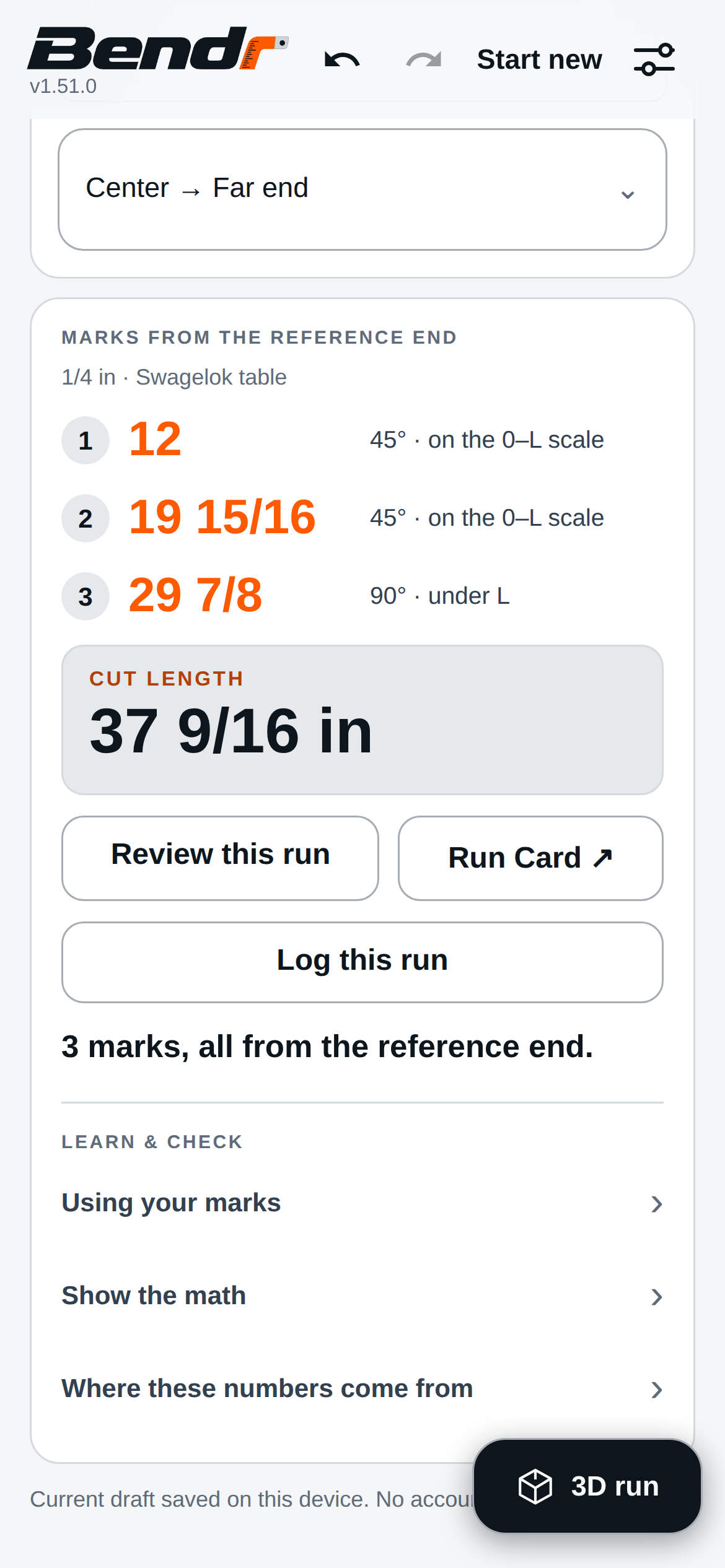
REF123MARK 1 12 inMARK 2 19 15/16 inMARK 3 29 7/8 inCUT 37 9/16 in
The run from Bendr’s own screenshots, drawn from its own arithmetic: 1/4 in tube on the MS-HTB-4T, bends of 45°, 45°, 90°, legs 12, 8, 10 and 8 in.Adding the legs instead would give 12, 20 and 30, and a 38 in cut. The fold is drawn at the marks with simplified corners.
Bendr’s main screen: three marks from the reference end at 12, 19 15/16 and 29 7/8 inches, and a cut length of 37 9/16 inches.

Built with a professional plumber

Calculating a run at the wall

I built Bendr with a professional plumber. He was doing bend and offset calculations by hand on a large tube-bending job. His method was measure at the wall, calculate by pen and paper, bend, back up to verify it, then calculate and bend again: up and down, back and forth.

Now he sketches the run in Bendr, enters his measurements once, and marks the tube once, before any bending starts. I learned his workflow exactly, the method behind it and the measurements it rests on, found where the time went, and designed the tool to those specifications. By his account, a job now takes him about half the time.

What it calculates

Swagelok’s premeasurement method

The math is Swagelok’s premeasurement method, transcribed from their hand tube bender manual (MS-13-43 Rev G, printed pages 22 and 23), with the published adjustment table read as printed for the three hand benders Bendr supports: the MS-HTB-4T, MS-HTB-6T and MS-HTB-8. It is computed entirely on the device, and your runs stay there too. There is no account and no backend. You can copy a backup of the Run log, including names and notes, and preview it on another device before adding missing runs. Before a release, the manual’s own worked example is reproduced mark for mark and an offline suite runs the calculator with the network cut.

STRAIGHT STOCKREF123MARK 1 12MARK 2 19 15/16MARK 3 29 7/8CUT 37 9/16AFTER BENDING12345° 45° 90°·legs 12, 8, 10 and 8 in
Fig. 02 / The run in Bendr’s own screenshots, drawn from its own arithmeticQuarter-inch bender. Adding the legs instead would give 12, 20 and 30, and a 38 in cut

Using the calculator

Measurements and advanced controls

A run needs the tube and the bender, each leg and where it was measured from, each angle, the last leg for the cut. Simple runs need only the main screen. Advanced configurations disclose more parameters alongside a live visualizer, so you see what is being calculated as you tune it.

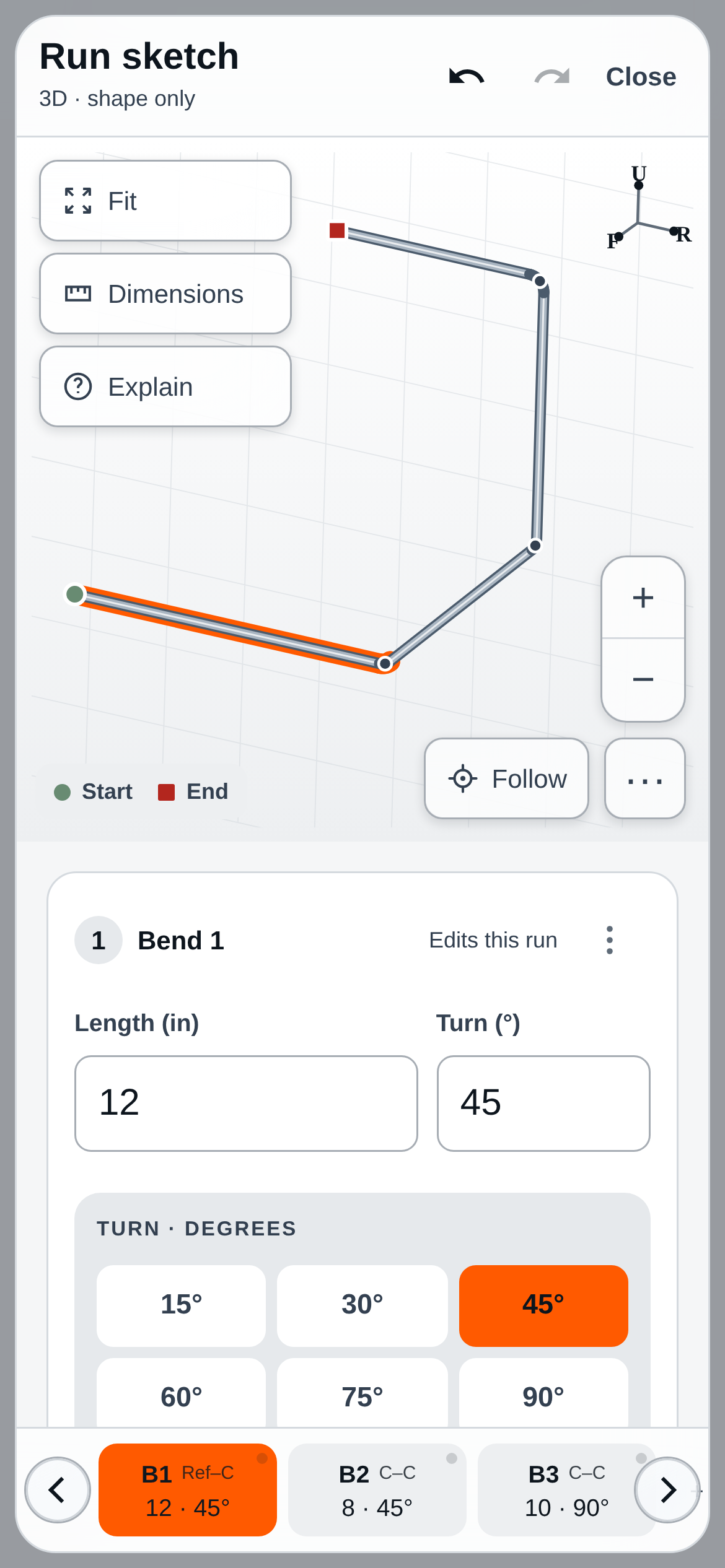
A 3D view shows the full run, with tappable bends to inspect or edit. Bendr includes concise explanations where a parameter needs one, the manual opened to the exact referenced page, and the manufacturer’s own video opened at the moment that matters.

Bendr’s 3D run sketch of the same run, with a bend selected.
The 3D run sketch of the same run, in the live web build.

Shaped by the field

Changes from his feedback

  • Fraction buttons stay first. Typing a fraction on a phone is slow; he reaches for the buttons and said so, and they stayed the primary way in.
  • A standalone offset page, because sometimes all he needs is the length of one diagonal leg.
  • The cut length, large and early. He leaves the last leg long and cuts it in place; a cut length he can trust before anything is mounted spares the remove, cut and remount.

What it is for

Why I built it

I want to make people’s lives better through software that connects their systems, automates work and gives them time back. For Bendr, I mapped a professional’s method and built it into a calculator he uses on the job.

Guarding against wrong pieces

I treat any warning shown beside a result as a to-do. When starting a new run could wipe the one before it, the first fix parked the old run in a card with two sentences of caveats. The same day I made Undo outlive the page, with its history written to the device as it goes, and deleted the card, its caveats and the tests guarding them. A closed tab no longer takes the run with it.

Early on, a new run kept the tube size from the run before it. He did not notice, and three pieces came out wrong, calculated for the previous tube. He asked for the size to be chosen at the start of every run, so a new run now opens with no size and nothing computes until one is picked. It costs a tap, and it removed a whole class of wrong pieces.

He also asked for no are-you-sure boxes, because everyone hates those, and there are none. Deleting a bend blanks the leg that started at it: the marks stop there, the cut length waits, and one Undo brings the bend and the numbers back. A run also asks how many bends it has before any measurement goes in, so a missed one shows up as an empty box while the tube is still straight.

Missing a bend quite literally wastes an entire piece. There is no way to unbend a pipe.

The plumber I build Bendr with, on missing a bend

What stays visible

Simple runs need only the main screen, and the advanced controls open when a run needs them or when he asks. The control for how a leg was measured carries a diagram that redraws from the tube, the bender’s radius and the reading as they are entered, so nobody has to picture what a setting does. Before hiding anything, I wrote down what must never be hidden: the tool and tube in use, the units, that legs run corner to corner, the angle convention, and any tool the app has no verified source for. Hiding those would put a wrong number on screen faster.

Where the numbers come from

Every adjustment comes from Swagelok’s published hand tube bender manual, for the three hand benders Bendr supports, and the app says on screen where each number came from. It reads the table as printed, including two cells that disagree with the column beside them, because correcting a source is a different act from using it. Between thirty and ninety degrees it uses only what the table prints, and an angle in that range the table skips is refused by name rather than estimated. Below thirty the manual says the adjustment is minimal, so the app carries zero and shows that the zero rests on a footnote rather than a printed cell. Lengths are held in exact sixteenths of an inch, the way the table prints them.

Before a release, the unit suite checks the recurrence against the manual’s own worked example mark for mark, the table as transcribed, the offset geometry across the usable range of angles, and every input that could be zero, negative or infinite. Browser tests drive the app through whole runs, and an offline suite runs the calculator with the network cut. Any change that moves a mark or a cut is attacked in review before it ships. That review caught a wrong first design for wall readings, and later a silent quarter-inch error, before either shipped.

In the field, a run marked from the app has been cut, bent and installed in a ceiling, and he reports it has passed every check he has put to it. No finished piece has yet been measured against calipers. That is next.

Engineering

Where each adjustment comes from

A bend uses up some tube, so every mark after the first sits short of where the legs would add up. The bender maker prints how much for each tube, radius and angle, and Bendr applies exactly that printed number. It shows where each value came from and flags any reading it rounded. When the table has no answer for an angle, Bendr says so by name.

Tape reading

BigInt rational · half-up to 1/16 · rounding note · centerline allowance · face readings at 90° only

A measurement typed as a decimal, a fraction or a mixed number is parsed as an exact rational in big integers, then rounded half-up to the nearest sixteenth before any floating-point number exists.

How it works

A note appears whenever that rounding changed the value. A reading taken to a wall or a corner is converted to the centerline length the method needs, adding or subtracting half the tube diameter, the bend radius and the surface gap as the endpoint requires. Face readings are accepted only at 90 degree bends.

The table

integer sixteenths · six printed columns · eleven angles · listed / below-table / unlisted · refused by name · provenance id per cell

Every adjustment that enters the arithmetic carries an id naming the manual revision and page, and the printed cell or the footnote it came from.

How it works

The manufacturer’s adjustment table is stored as printed: integer sixteenths in six columns of tube size and bend radius, across eleven angles. It was transcribed from the rendered pages and independently re-read, and two cells that disagree with the column beside them are kept as printed. Each angle resolves to one of three typed results: a printed cell, zero under thirty degrees resting on the manual’s footnote, or unlisted. An unlisted angle is refused by name wherever a later mark or the cut needs it, and nothing is interpolated or extrapolated. The trace refuses any value without a stated source and basis.

Marks

P[1] = L[1] · P[i] = P[i−1] + L[i] − g[i−1] · cut = P[n] + tail − g[n] · non-advancing mark stops the run · R·tan(θ/2) arc fit · marks nearest, last leg up, exact → printed

The first mark is the first leg, and each later mark is the previous mark plus its leg, minus the adjustment for the bend before it.

How it works

Marks follow the manual’s own recurrence. The cut is the last mark plus the last leg minus the last bend’s adjustment. That adjustment is used only for the cut, and Bendr does not assume it when no last leg is given. If a mark fails to advance past the one before it, that is recorded as an arithmetic issue and the screen stops at that bend with the reason. A separate geometry check uses the tangent setback at each end to flag a leg too short to hold its two arcs, and it leaves every mark where it is. Rounding for display happens after all of this. Marks print at the chosen step, and the last leg rounds up so the leg after the last mark is not short. When the exact figure and the printed one differ, the line shows both, and printed values do not feed back into the arithmetic.

The manual

SHA-256 pinned · 32-page check · PDF.js pinned · eval and Wasm off · credentials omitted

The manual reader fetches the manufacturer’s original PDF and draws its highlight only when the file’s SHA-256 and page count match the pinned revision.

How it works

The web manual reader fetches the manufacturer’s original PDF without sending cookies or credentials. That is the one outbound request in the app’s web code. A pinned PDF.js renders it in a separate reader shell, with eval and WebAssembly disabled. The highlight over the referenced section is drawn only when the file’s SHA-256 and page count match the pinned revision. Otherwise the reader says the source has changed and hides the highlight. The native builds bundle only the referenced pages, rendered from a source file the preparation script rejects unless its hash matches.

Runs

one key, one write · Undo inside the draft · frozen run log · previewed, additive restore · SHA-256 + deflate in the fragment · recomputed on import

The working run and its Undo history are one versioned document saved in a single write, so the draft and its history cannot disagree.

How it works

The working run is one versioned document under one storage key. Its Undo history is written inside that document in the same write, so the draft and its history cannot disagree. The log keeps frozen records of the marks and cut as the strings that were shown, and a correction is logged as a new record beside the original, which is not overwritten. A backup copies the whole log, names and notes included, as one JSON document. Restoring it parses every record before storage changes and previews how many runs are new and how many are already here, including those that differ. It adds only the missing runs and leaves existing ones as they are, and it refuses the whole restore if any record is damaged or if the merged log would push older runs out. A shared run card packs the run in a fixed order, hashes it with SHA-256, and deflates it into the link’s fragment and a QR code. On arrival the payload is size-bounded before parsing, rejected on a hash mismatch, and recomputed with the current build, which flags any mark that has moved. The hash identifies content and does not authenticate the sender.

Tests

worked example: 3, 5 3/16, cut 7 7/8 · node:test, no framework · Playwright on the built export · service workers blocked · setOffline(true) · 40 3/16 with the network cut

The unit suite asserts the manual’s printed worked example exactly, and the offline suite cuts the network and checks that a new mark still computes.

How it works

The unit suite runs on Node’s own test runner and asserts the manual’s printed worked example exactly: quarter-inch tube, legs of 3, 2 1/2 and 3 with two 90 degree bends, marks at 3 and 5 3/16, cut 7 7/8. The browser suite drives the static export in Chromium at a phone viewport, served by request interception with service workers blocked. The offline suite uses a real local server. It waits for the worker to take control, cuts the network and reloads, then asserts that the saved run restores, that a new mark still computes (17 5/8 + 22 7/8 − 5/16 = 40 3/16), and that the screen labels itself the offline copy.

Delivery

one TypeScript source, three platforms · static web export · one cache per version · network-first, 3 s, shell fallback · fingerprint runtime, zero-difference manifest · explicit Restart

One TypeScript source ships the web as a static export, and iOS and Android as native apps that take JavaScript updates over the air.

How it works

On the web, a hand-written service worker keeps one cache per app version. It loads pages network-first with a three-second timeout and falls back to the cached shell, serves the content-addressed bundle cache-first, and deletes old caches on activation. The build stamps the worker with the app version and fails if the placeholder survives, and the deploy refuses to run without a built export. Before a native update publishes, a guard rebuilds a full compatibility manifest (fingerprint sources, app config, package and lockfile, build config, native file hashes) and refuses on any difference from the manifest recorded for the installed builds it targets. An update therefore reaches only a binary whose runtime fingerprint it matches. Staging requires the reviewed commit at HEAD with a clean tree. The app does not reload itself while someone is working. It offers a downloaded update through a Restart notice.

ADJUSTMENT BY BEND ANGLEBR-03under 30°: zeroresting on the manual’s footnote31° to 44°: refused by nameas is each narrower gap belowabove 90°: refused by namethe table prints nothing there0°120°30°045°1/1650°1/1655°1/1660°1/865°1/870°1/875°3/1680°3/1685°1/490°5/16
MS-HTB-4T · 1/4 in tube · 9/16 in radius · bars in sixteenths of an inch · refused angles hatchedThe printed adjustment by angle, and the angles Bendr refuses. Adjustment per bend for the MS-HTB-4T on 1/4 in tube, by bend angle, from the printed column of the manufacturer’s hand tube bender manual (MS-13-43 Rev G, page 23), as this page’s figure code holds it. The refused bands come from asking a lookup that mirrors the product’s rule about every whole degree. Under 30 degrees the app carries zero, resting on the manual’s footnote. Between printed angles and above 90, it refuses by name wherever a later mark or the cut needs that bend’s adjustment. It does not interpolate or extrapolate.

Limits. There is no continuous integration. The typecheck, unit, browser and offline suites are run by hand before a release, and a change that moves a mark or a cut also requires a worked example reconstructed by hand and an adversarial review. No bent piece has been measured with an instrument, and the two-piece calipers comparison is written but not yet run. The native apps send installation identifiers and update diagnostics, so the on-device claim covers the calculation and the runs only. At the last recorded release, publication was checked against what the servers returned. Whether a phone applied the update is unconfirmed.

Platforms

  • Web

    Live now.

    Try the web build
  • iOS

    In TestFlight external beta.

  • Android

    In Play internal testing.

Questions

Which calculation method does Bendr use?
Swagelok’s published premeasurement method, transcribed from their hand tube bender manual. The app opens the manual to the referenced page. Bendr is independent of Swagelok; the manual is its source, not its sponsor.
Does it need a connection?
No. The math runs entirely on the device, not on a server. The manual and the manufacturer’s video are the two things that need one.
Who is Bendr for?
Tradespeople who bend tube with hand benders and want the marks right the first time.
Is the code open source?
No. Bendr is a commercial product and the repository stays private.
Who built it?
David Jones, with a professional plumber who uses it on his own jobs.

Changelog

What shipped, newest first.

59 releases since 5 Sep 2026, the latest on 24 Sep 2026. From Bendr’s in-app release notes.

  1. 1.52.0

    Your Run log can travel with you.

    • New Copy a backup of all logged runs, including their names and notes. Paste it on another device to preview and add missing runs without removing older ones.
    • Improved How to measure now explains inside and outside corners, the close-leg gap and where to find the less common End reference.
    • Improved The measurement guide's tabs wrap on narrow screens and when you use larger text.
    • Improved Shared links and in-app support links use Bendr's web address, bendr.mainthread.ai.
  2. 1.51.0

    The sketch keeps its key in place, and bend actions move to the bend's card.

    • Fixed The Start and Continues key stays at the bottom of the sketch whether or not the controls are showing their labels. It was sitting in the middle of the drawing.
    • Improved Insert before, Insert after and Remove now open from the bend's own card in the sketch, so the canvas menu is only about the view.
    • Improved That menu opens below its button in the same place every time, and tapping outside it visibly closes it.
    • Improved Compact icons is a switch that stays set between sketches, and it is also in Settings under Run display.
  3. 1.50.0

    A clearer view of each bend and controls within reach.

    • Improved Follow shows the measured legs around each bend, with more room to understand its place in the run.
    • Improved Dimensions prioritizes adjoining centerline lengths with clear measurement lines and endpoints.
    • Improved A compact More menu opens beside its button. Zoom and Follow sit together near the bottom of the canvas.
    • Fixed Frosted controls have clearer edges. Follow includes an icon in both labeled and compact modes.
    • Fixed The drawing guide keeps its size when switching between Centerline, Vertex and Turn.
  4. 1.49.0

    A bend strip within reach and edits that keep your place.

    • New A strip at the bottom of the 3D viewer shows bend lengths, angles, measurement references and status, with arrows for moving through the run.
    • New Hold a viewer-strip bend to inspect or edit it, then return to your selected bend, camera view and place in the run.
    • Improved Frosted viewer controls float around the canvas edges, with an aligned toolbar and focused sheets for drawing guides and measurements.
    • Improved Temporary bend edits use the same controls and Undo history as the calculator.
    • New Bendr’s new brand identity appears in the app, Run Cards and website, keeping the familiar colors.
Earlier releases (55)
  1. 1.48.0

    A clearer 3D workspace and easier measurement inspection.

    • Improved Camera controls and the rotating orientation guide stay inside the 3D canvas. Select a bend below it to highlight its section and edit it in place.
    • Improved Undo and Redo stay in the viewer header, with familiar insertion buttons between bends.
    • Fixed Required corner placement stays visible for both measurement ends. Conflict messages identify the readings that need attention.
    • Fixed Native sheet headers keep their title and close action aligned. Manual pages wait for their display size before loading and include readable source text.
    • Improved The release note uses native frosting and clears after a short pause. The marks card groups its guides and calculations into focused help sheets.
  2. 1.47.0

    Smoother entry, consistent inspection and original manual pages.

    • Fixed Offset explanations open within the 3D viewer, with a clear path back to editing.
    • Improved Keyboard Done, degree-button positioning and ruler dragging make numeric entry easier.
    • Improved The 3D editor shares the calculator’s controls. Help headers and bend previews use frosted materials.
    • Improved Native manual links include the highlighted original pages. Last-leg entry and cut-length styling are tidier.
  3. 1.46.0

    Steadier entry, clearer diagrams and native frosted chrome.

    • Improved The top Run Strip stays available while entering lengths and offsets. Swipe it away when you want more room.
    • Improved Frosted header and Run Strip materials now use native iOS rendering and respect reduced transparency.
    • Improved Offset measurement choices keep a steady layout, with a visible Measured across label and direct reference buttons.
    • Fixed Diagram labels use cleaner leaders. Bend direction controls remain available when the floating 3D button is hidden.
  4. 1.45.0

    Clearer measurement choices, readable diagrams and calmer entry.

    • Fixed Reference conflicts point to the choice that needs attention, while valid lengths keep their normal appearance.
    • Improved Corner placement comes before its diagram, with clearer labels and a steady preview while choosing the close leg.
    • Improved Offset measurements have a matching visual inspector that connects the measured distance to the calculated leg.
    • Improved Recalculation notices stay near the header and combine quick edits. Opening a measurement menu brings its choices into view.
  5. 1.44.0

    Find your preferences in clearer Settings groups.

    • Improved Calculator, run display, appearance, startup and help preferences are grouped in one familiar Settings sheet.
  6. 1.43.0

    See how your corner placement changes the measurement.

    • Improved The reference diagram now follows your selected endpoint, close leg and surface gap, with clear Center and Corner markers and a dimensioned endpoint allowance.
    • Improved Edit the gap directly, use familiar orange selections, and expand or hide other face references without losing your choice.
    • Improved Hold a run-strip bend to inspect its corner placement and diagram without leaving your current bend.
    • Fixed Reference editors stay open independently, unnecessary blank space is removed, and Explain keeps a steady frame as you explore its lessons.
    • Fixed Reference warnings identify the endpoint that needs attention and appear once per card. The 3D-button hide notice clears sooner.
  7. 1.42.0

    Clearer measurement choices, steadier editing and visual help.

    • Improved Measurement choices use larger, full-width buttons and a steady layout, with immediate responses instead of resize animations.
    • New Tap the tube diagram or Explain this reading for illustrated help on centers, inside and outside corners, and tube ends.
    • Fixed Offset reading choices keep the length-reference editor open, preserving your place while you work.
  8. 1.41.0

    Choose measurement points right in each bend card.

    • New Choose Center, Inside corner or Outside corner at each end of a measurement. Your original length stays in its field.
    • New See the measurement points and converted centerline length together. Tap the diagram or Explain this reading for a closer look without leaving the card.
    • Improved Corner placement, saved runs and shared Run Cards retain your readings. The direction control still shapes the 3D run.
  9. 1.40.0

    Measure a complete run around a rectangular column.

    • New Open Around a column from a bend’s measurement reference. Enter raw wall and column readings, choose the surface gap, and preview four bends before replacing your run.
    • New See how face readings become centerline lengths and stock marks. Column checks flag lost clearance and show endpoint shifts caused by rounded marks.
    • Improved Column readings stay with saved and shared runs. Manual leg edits stay yours when the bender changes, and Undo restores the run before a replacement.
  10. 1.39.0

    A clearer run strip, with corrections that keep your place.

    • Improved A white track in light appearance, clearer dark chips, translucent arrows and corner status indicators make the run easier to read.
    • Improved Minimizing tucks the chips under the header. The restore handle stays reachable, and scrolling the page resumes following your bend.
    • New Hold a bend, then choose Edit bend to correct its values without leaving your place. Open the sketch when you need more context.
    • Fixed Recalculation highlights wait until you can see them. Quick navigation respects your latest action, and obsolete offset notes no longer leave empty space.
  11. 1.38.0

    A compact run strip keeps nearby bends within reach.

    • New Enable Run strip in Settings to browse entered bends, step through the run, or hold a bend for a detail preview.
    • New Double-tap a strip arrow to find the next bend needing attention, or hold it to reach the first or final bend.
    • Improved Place the strip at the top or bottom and swipe toward that edge to stash it. Offset connections and brief recalculation outlines keep the run’s relationships visible.
  12. 1.37.0

    Smoother length entry and steadier 3D controls.

    • Improved On iPhone, the length field and fractions move into view together as the keyboard opens.
    • Fixed Dragging the tube preview or run sketch keeps the surrounding page still.
    • Fixed Settings uses a consistent background around its rounded corners in dark appearance.
  13. 1.36.0

    More reliable fraction entry and updates when you’re ready.

    • Fixed Choosing a fraction keeps the complete length when the native keyboard closes.
    • New In the native test builds, a downloaded update shows What’s new and a Restart button, and your whole-run entry is saved before restarting.
    • Improved Native header spacing, help-menu widths and fraction previews are more consistent. Drag the Settings handle down to close it.
    • Fixed Tube labels keep their inch symbols, and the offset result follows your light or dark appearance.
  14. 1.35.0

    Choose the direction your run starts.

    • New Starting direction is available during setup and above bend 1. Choose any of the six directions for the first straight section; the sketch and bend choices follow it.
    • Improved Starting direction stays with Undo, saved runs and Run Cards. Existing measurements and chosen bend directions are kept when you change it.
    • Fixed Closing a direction menu no longer pulls focus away from a field you have just started editing.
  15. 1.34.0

    Groundwork for the iOS and Android test builds.

    • Improved Run Cards support native link sharing, copying and deliberate import with Undo, and a shared card can open in the test build.
    • Improved Native editing sheets make room for the keyboard, and the app has its own Bendr icon and launch screen.
  16. 1.33.0

    A clearer run sketch and simpler direction choices.

    • Improved The sketch opens with bend dots and a small start/end legend. Turn on Dimensions for measurements and labels; Explain holds the extra guidance.
    • Improved Bend cards show plain direction names. The chooser keeps Current direction and New bend direction; detailed heading results and relative controls live under How it works.
  17. 1.32.0

    Plan directions and choose the fractions you work with.

    • New End offset hides an unused offset box on a following bend. Use offset brings it back; your lengths, angles and marks stay as entered.
    • New Choose Up, Down, Left, Right, Forward or Back from each bend card. The same directions appear in your 3D sketch; hide the card controls in Settings if you prefer.
    • Improved Fraction buttons and the ruler follow your chosen increment in Settings. Choosing eighths hides the smaller sixteenths, without changing finer values already entered.
  18. 1.31.0

    Standard keyboard focus for length entry.

    • Fixed Removed the extra scrolling and blank space added when opening fractions. Length fields use the browser’s normal focus behavior; scroll the page to reach the keypad or ruler.
  19. 1.30.0

    A calmer start to each length.

    • Fixed Length entry prepares the inline fractions before opening keyboard focus, replacing the repeated scroll corrections that caused jumping between bends.
    • Improved Add bend uses the same immediate entry flow. The keypad and ruler keep their full-size controls, with room to scroll the last field into view.
  20. 1.29.0

    Less clutter. More room to enter your run.

    • New The floating marks tracker is optional and starts off. Turn it on in Settings for longer runs; full marks remain below your bends.
    • Improved Routine notices fit their message in a smaller frosted glass surface and fade away automatically. Notices with important follow-up actions stay available.
    • Fixed Fraction entry responds to late browser scrolling when moving to another bend, while manual scrolling stays in your control.
  21. 1.28.0

    More room for entering lengths.

    • Improved The floating marks fade away while fraction entry is open and return when it closes.
    • Fixed Opening the phone keyboard scrolls the length and fraction choices into view together when they fit. Dragging the page keeps you in control.
  22. 1.27.0

    Fraction entry stays with the measurement.

    • Fixed The fraction keypad and ruler now sit below the active input, keeping the measurement clear when the phone keyboard opens.
    • Improved Keep the equal-size fraction keys and scroll the page normally. No floating panel or separate scroll inside the choices.
  23. 1.26.0

    Fractions at your fingertips. Your bend stays in place.

    • Improved Fraction buttons and the ruler open in a shared floating editor, without expanding the bend tile.
    • New An ordered fraction keypad gives every choice the same space. Whole clears just the fraction.
  24. 1.25.0

    More room to read. Clearer controls.

    • Improved Settings groups appearance controls and their explanations, with matching switches for glass effects and the 3D run button.
    • Improved Run log shows its saved count together. Release notes start with the latest three updates; older ones appear as you scroll.
    • Improved Angle shortcuts have their own softly shaded group, with more room between turns and fractions.
  25. 1.24.0

    Choose a direction. See where the next leg goes.

    • New Turn the sketch toward Up, Down, Left, Right, Forward or Back. The entered angle stays exact, with incoming and outgoing headings beside the control.
    • Improved Offset connectors stay diagonal, and the preview identifies a return to an earlier heading. Direction help explains the fixed reference and how the length reaches its bend.
    • Improved Open a bend’s sketch from its options menu. Direction choices stay with Undo, saved runs and shared cards; original relative plane controls remain available.
  26. 1.23.0

    Consistent offset precision. Small offsets stay usable.

    • Fixed Calculated offset lengths and their explanations follow your selected measurement increment throughout Bendr. Assigned lengths keep their entry precision, which is identified when it differs.
    • Fixed Very small offsets no longer blank the page or suggest zero spacing between marks. When the bend arcs need more room, the calculator explains why marking instructions are unavailable and keeps your inputs editable.
    • Improved Every logged run identifies its recorded measurement increment, including sixteenths. Changing your current setting leaves the saved figures intact.
  27. 1.22.0

    Room for every mark. Useful actions when a run is logged.

    • Improved Expand the floating marks where they are, without scrolling away from your entry. Numbered measurements stay readable, and the cut length has its own place.
    • Improved Cut lengths use a warmer, lighter panel with large, high-contrast digits on the calculator and Run Cards.
    • New The Logged confirmation offers View, Name and Share. View opens that saved run over the calculator, keeping your place.
    • Improved Run Cards have a smaller QR footer and clear feedback on their sharing and copying buttons. Logged runs also have a direct Share action.
    • Fixed Long offset explanations use the full width below the reading selector, so they no longer leave a gap above the input.
    • Improved Find your Run log in Settings or below the results. Logging the first run no longer adds a row above the inputs.
  28. 1.21.0

    A clearer review. A run you can share.

    • New Review the current run with its entries, reading types and marks together. Tap a bend to edit, then return to the review.
    • New Create a branded Run Card, choose its details and appearance, then share an image, link or text. The link opens a fixed snapshot and leaves the recipient’s current run alone until they choose to open a copy.
    • New Give logged runs optional names and keep a short note about the piece or a particular bend.
    • Improved Floating marks and notices use frosted surfaces with soft edge highlights. Glass effects can be turned off in Settings.
    • New Keep the screen awake while reviewing, when the browser supports it. Closing the review releases it.
  29. 1.20.0

    Results when they are useful. A clearer Hide gesture.

    • Improved The floating marks bar appears softly once a mark is available and you are working in the bend entries. Empty runs have no bar or reserved gap, and typing stays in place.
    • Improved Hold the 3D button over the trashcan to see it collapse inside. Move away to bring it back, or let go to hide it. Undo restores it.
  30. 1.19.0

    Steadier entry. Clearer diagrams.

    • Fixed Manual pages remain visible on Safari when its browser lacks a newer text-reading feature. Source links still open the relevant page in Bendr’s reader.
    • Fixed The first mark and decimal-entry hint have reserved space, so they do not push your input down as you type.
    • Improved Offset diagrams show where straight centerlines meet at virtual corners, with aligned dimensions and bend angles.
    • Improved The Hide target stays fully in view, becomes clearer as you approach, and sits in front of the 3D button so you can see where to release.
    • New The Offset calculator has an entry-options menu for Ruler or Buttons. Your choice applies throughout Bendr on this device.
  31. 1.18.0

    A smoother ruler. Clearer choices.

    • Fixed The manual reader now handles Safari’s offline-page routing correctly. A separate exact-page reader link stays available if an embedded page cannot load.
    • Improved The ruler has a centered half-inch mark and a white bracket that slides smoothly before settling on an exact sixteenth. Entry previews reach the edges with a soft fade.
    • Improved The 3D button gently pulls toward an outlined Hide target, then shrinks into it. Undo in the header can bring it back.
    • Improved Tube options illustrate diameter, bend radius and wall thickness. Hiding the selected size keeps your measurements and asks you to choose again; Undo restores it.
    • New Explain in each offset box shows the offset, diagonal leg and measurement types with your values or a labeled example.
    • Improved Wall thickness keeps a compact field in the same place while editing.
  32. 1.17.0

    Steady controls. Help at the right place.

    • New Manufacturer links open the relevant manual page with the section highlighted, and the manufacturer’s video can play in the app, starting at the relevant step.
    • Improved Size-change notices stay until dismissed and never shift your entries. View details explains the change; Last size change in tool options brings it back.
    • Improved Drag the 3D button to Hide, with Undo to bring it back. Its dock avoids the marks and notices, and stays put when the keyboard closes.
    • Fixed Wall thickness is editable before starting a run. The value becomes a field in the same place, with no extra editing row.
    • Improved Options stay centered while closing. Visual previews show the Buttons and Ruler entry choices.
  33. 1.16.0

    Less to scan. More within reach.

    • New An orange ruler selects exact sixteenths. Choose Ruler or Buttons in any bend’s options; the preference applies across the app.
    • Improved Bend options hold Delete. Tool options hold shown sizes and manufacturer links. Illustrated guides explain measuring and marking when you need them.
    • Improved The tube faces the size choices, with matching typography and orange dimension lines. Restored drafts have a clear review notice.
    • New Pinch, pan and twist the 3D run with two fingers. Drag its floating button to a corner or slide it to an edge; tap the handle to bring it back.
    • Fixed Fraction buttons in the 3D viewer now enter the value on their label. Previously each selected one sixteenth too little; the main-screen buttons were correct.
  34. 1.15.1

    Explore one detail at a time.

    • New Tap a dimension, dot or tube segment to inspect it. Crowded labels become anchored dots; zooming in reveals more.
    • New Previous and Next walk through your run. Focus brings a feature closer and follows along; Fit returns to the whole piece.
    • New Attributes lists every drawn landmark, including overlapping ones. Other side turns the camera without changing your bend directions.
  35. 1.15.0

    See, understand and edit your run.

    • New Open 3D run to inspect pinned lengths and bend angles. Edit the same run here, including offsets, fractions, new bends and Undo.
    • New Explain highlights the centerline, virtual vertex and turn angle on your own run. Sketch directions change only the drawn shape.
    • Improved The tube sample carries its diameter and wall dimensions. Tilt it, release, and it springs home. Reduced motion is respected.
  36. 1.14.0

    Turn the tube in your hand.

    • New Drag the tube to look around it. Reset view brings it back; arrow keys work too.
    • Fixed The tube is hollow: both openings and the inside wall stay aligned as the size or viewing angle changes.
  37. 1.13.1

    A steadier tube selector.

    • Fixed Size choices stay in place from the first tap, with larger circles to compare the diameters.
    • Improved Wall warnings show on Start a run, Whole run and Offset. Typing a wall no longer animates the bore from zero.
  38. 1.13.0

    See the tube you are working with.

    • Improved Tube size has a visual selector. The cross-section changes with the diameter and wall thickness you enter.
    • Improved Tap the wall value to edit it. Unresolved wall readings stay visible when the editor is closed.
  39. 1.12.1

    A lighter logo.

    • Fixed The logo files are far smaller, so a fresh open on a weak signal is not waiting on them.
  40. 1.12.0

    The Bendr name, logo and look.

    • Improved A new look in charcoal and off-white, light and dark, where one orange means the mark: the figures you cut to, the selected choice and the bend.
    • New The Bendr logo, in the title bar and on the start screen.
  41. 1.11.0

    Works with no signal.

    • New Once the app has opened on your phone, it opens and works out marks with no signal.
    • New A line at the bottom says when it is running the copy on the phone, and with a signal it always fetches the newest build first.
  42. 1.10.0

    A frosted title bar.

    • Improved The title bar is translucent: the run shows through it, blurred, as you scroll. Light and dark both.
  43. 1.9.0

    A dark mode.

    • New Settings has Appearance: System, Light or Dark. System follows the phone.
  44. 1.8.0

    How fine the marks read, and two defaults.

    • New In Settings, choose whether marks read to the nearest 1/16, 1/8, 1/4 or 1/2. The cut is the last mark plus the last leg rounded up.
    • New Show the math still gives the exact, unrounded figures, and what you type is not changed.
    • New Choose the page the app opens on: last used, Whole run, or Offset.
    • New A stock wall thickness to fill in whenever a run starts.
    • Improved A logged run remembers how fine its marks were, so opening it later compares like with like.
  45. 1.7.1

    Undo and Redo look like Undo and Redo.

    • Fixed The Undo and Redo arrows are the familiar curved ones, and each is a full-size button again.
  46. 1.7.0

    A Settings button, and these notes.

    • New Settings, top right. Release notes live here, so when the version goes up you can see what changed.
    • New After an update, a note at the bottom of the screen says so and opens these notes.
    • Improved Undo and Redo are arrows only, since they are rarely needed; Start new keeps its word. The link to the build before this one moved into Settings.
  47. 1.6.0

    Undo survives the phone closing the page.

    • Fixed Start new, opening a logged run and starting a fresh run over an old one are each one Undo away, even after the phone reloads the page.
    • Improved The run set aside by Start new no longer needs its own card and warnings; Undo brings it back.
    • Fixed The version menu opens where you are looking, however far down the run you have scrolled.
  48. 1.5.1

    Small things a review caught.

    • Improved The caret by the version is one you can actually see, and the version is as easy to tap as the buttons beside it.
  49. 1.5.0

    Start new no longer loses the run.

    • Fixed Start new used to clear everything and delete the saved run. It now drops the tube size only; the measurements stay.
    • Fixed Undo, Redo and Start new stay in the title bar on every screen and grey out instead of disappearing.
    • Improved Log cards open without closing each other, so the card you tap does not jump.
    • Improved A caret by the version number, so it reads as a menu.
  50. 1.4.0

    A run is opened, not just typed into.

    • New Pick the tube size first, then how many bends. Nothing is worked out until the size is chosen, and it is not carried over from the last run.
    • New The bend count from your notes lays out that many boxes, so an empty one at the end is a bend you missed.
    • Improved Each leg has one list of readings in your words: Ref end, Center, End and Far end.
    • Improved Choosing a turn no longer jumps to the next bend.
    • Improved Length and turn come first in each box, there is more space between inputs, and the "even" chip is gone.
  51. 1.3.0

    Logged runs.

    • New Log this run keeps what you typed, how each leg was read, and the marks and cut you were shown, so a piece that does not fit can be traced back.
    • New Open a logged run to read it, or open it back into the calculator; it is reworked with today’s arithmetic and any difference is named.
  52. 1.2.0

    Read a leg to a wall.

    • New A leg or an offset can be measured to a wall at either end, and half the tube comes off per wall. Only where that bend is 90°.
  53. 1.1.1

    The insert circle, cleaned up.

    • Improved The circle between bends is unfilled, its plus centred, and it sits clear of the cards.
  54. 1.1.0

    Insert a bend between two, and the version under the title.

    • New A circle on the seam between two bends inserts one there.
    • Improved The note after Undo or Redo sits under the marks strip instead of over it.
    • New The version number shows under the title, so a screenshot says which build it is.
  55. 1.0

    The calculator as it first reached the phone.

    • New Enter legs and turns to get the cut length and every mark measured from the reference end, using the adjustment table in Swagelok’s published hand bender manual.
    • New Sixteenth-inch entry, an Offset page, and your entry saved on the phone.